
Responding does not always close a request straight away. An uploaded document is reviewed by your customer first. Questionnaire answers are checked automatically when you submit them. Either way, the request leaves your list once your customer's compliance checks pass on what you sent.
Follow your documents
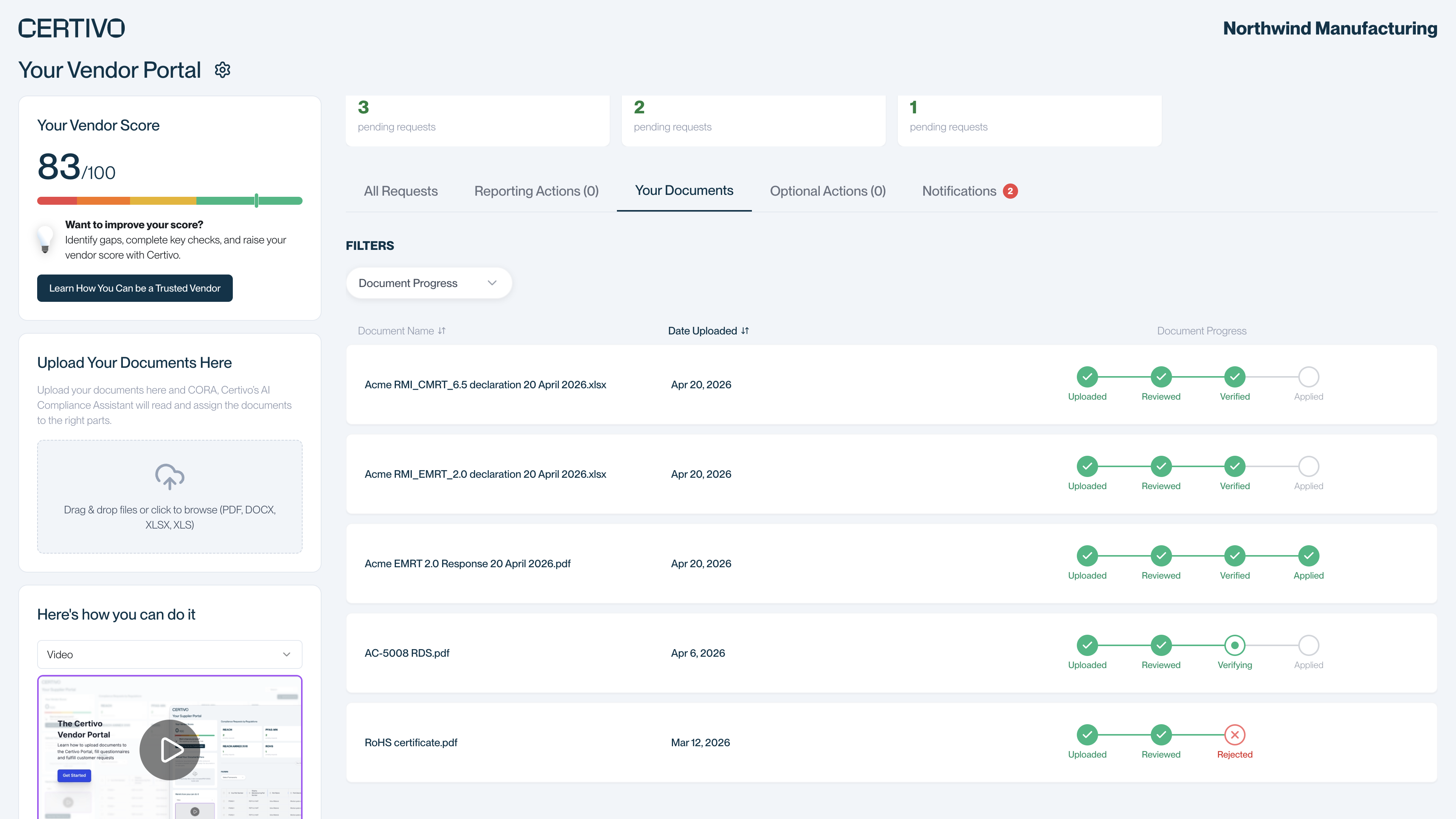
Open the Your Documents tab in the portal. It lists every document you have sent through this portal link, with the date and a progress tracker.
 (opens a larger view)
Each document moves through four steps:
| Step | What it means |
|---|---|
| Uploaded | Certivo has received your file. |
| Under Review, then Reviewed | Your customer looks at the document and accepts or rejects it. |
| Verifying, then Verified | Certivo reads the accepted document, and the information taken from it is checked. |
| Applied | The information has been used to update your requests. |
Use the Document Progress filter to show only documents at one stage.
When a request is complete
A request leaves your pending list once your customer's checks pass on the information you sent. This can take a while after you upload, because a person at your customer reviews each document.
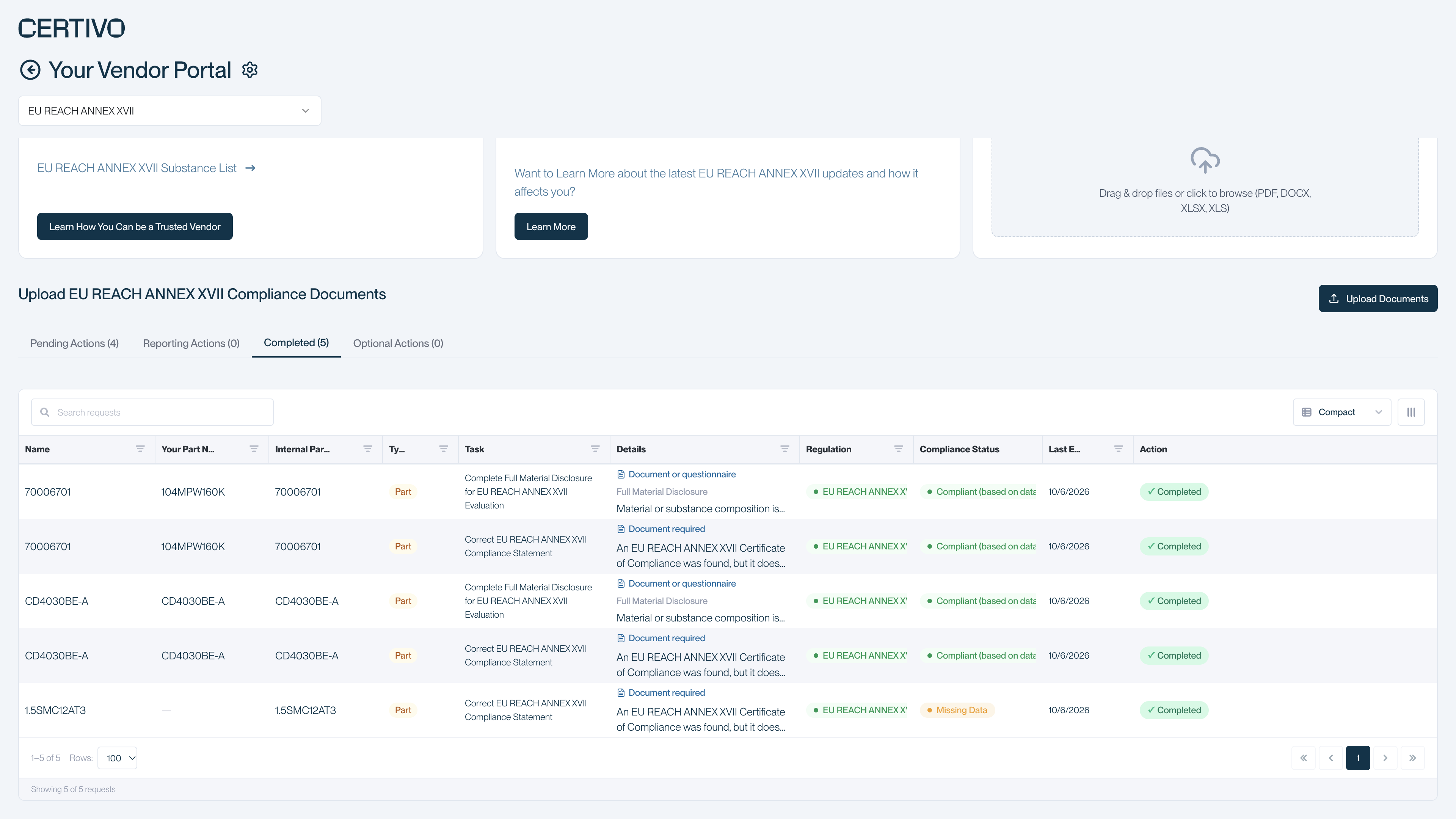
To see what you have completed for a regulation, select its card on the main page, then open the Completed tab. A card is shown only while that regulation still has pending requests.
 (opens a larger view)
If a document is rejected
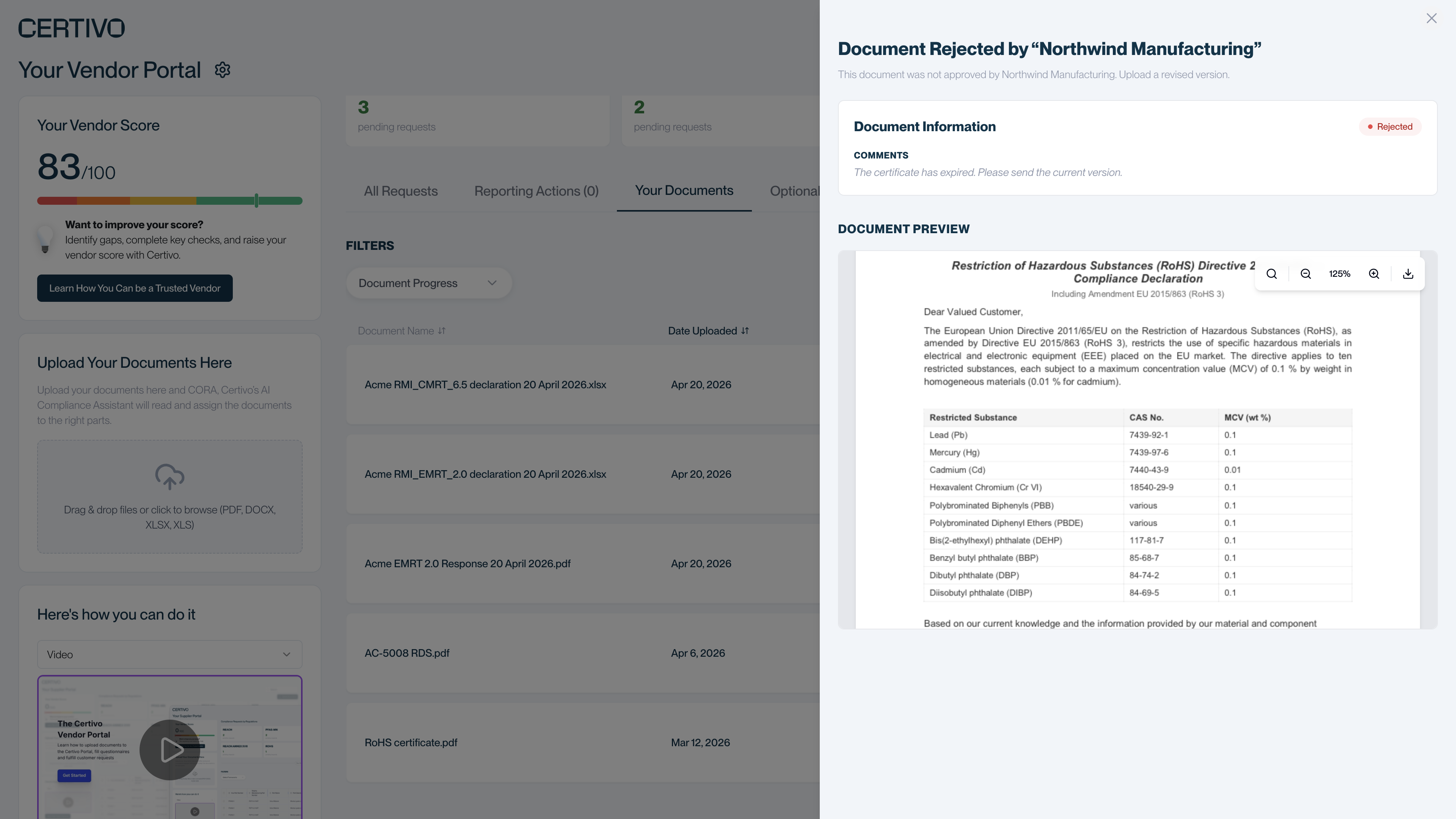
A rejected document shows a red Rejected step in the tracker.
- In Your Documents, select the rejected document.
- Read the comments from your customer. The panel also shows a preview of the file.
- Upload a corrected version from the main page, using the request's button in the Action column or Upload Documents.
 (opens a larger view)
Your customer may also email you about the rejection. The subject usually starts with "Document Rejection".
Your vendor score
"Your Vendor Score" on the main page is the share of this customer's requests that are complete, out of 100. It is not a rating of your company.
The score is recalculated in the background, so it can take a few hours to change after you respond.
Reminder emails
While you have open requests, Certivo re-sends the request email at an interval your customer chooses. The subject usually starts with "Update:" and the table in the email shows what is still pending. Reminders stop when every request is complete.
There is no unsubscribe link. If you believe you should not be receiving the requests, tell your contact at the customer.