
The link in the request email is not enough to open the portal. You also sign in, so the portal can check that you belong to the company the request was sent to. You do not need to create a password.
Sign in
- Open the link in the request email.
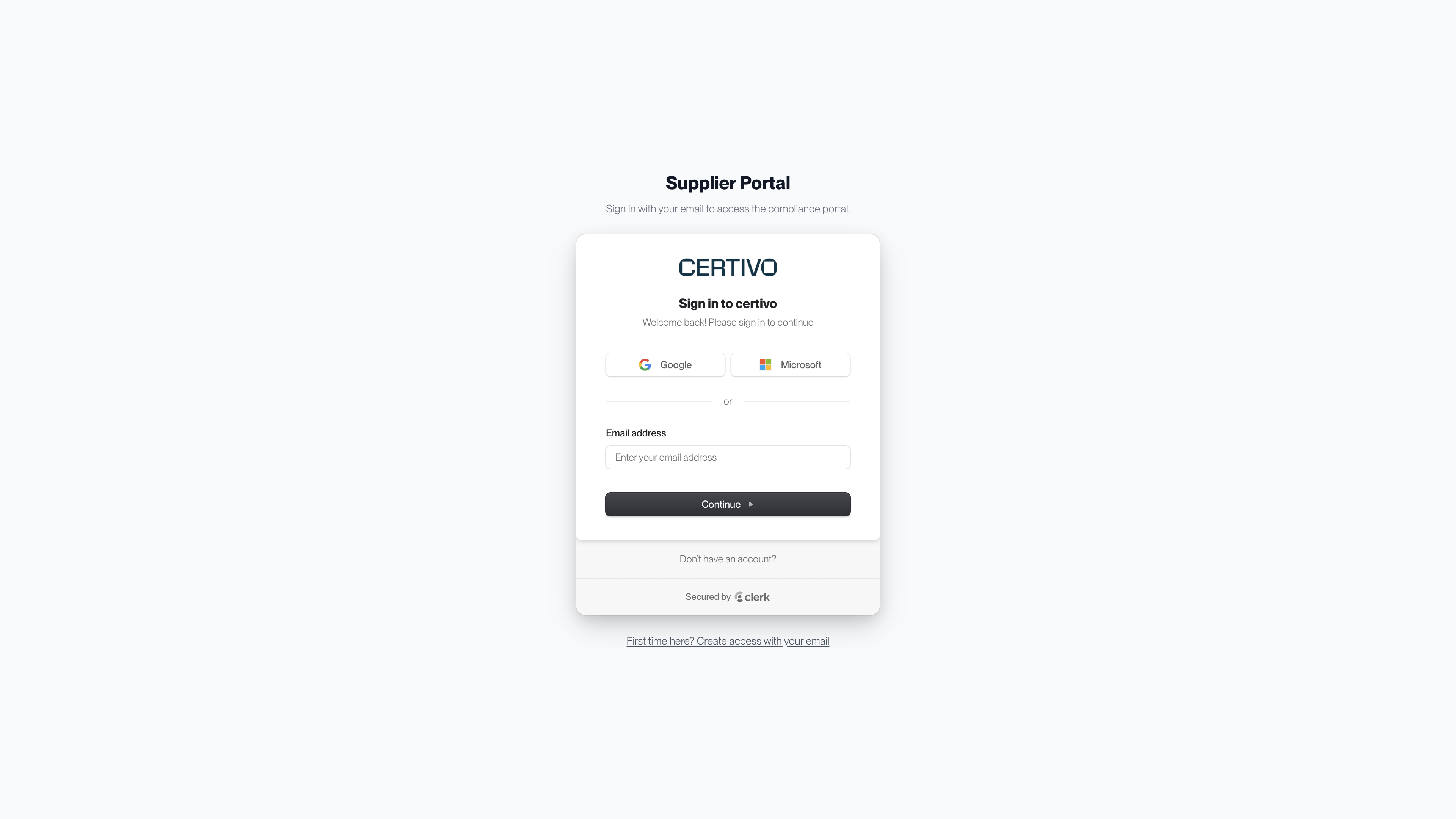
- Enter your email address and select Continue. On your first visit, select First time here? Create access with your email first.
- Enter the one-time code sent to that address.
You can also use the Google or Microsoft button, as long as that account uses an email address the portal recognizes for your company.
 (opens a larger view)
You stay signed in on that browser for a while, so later visits may open the portal directly.
Which email address works
The link alone is not enough. The address you sign in with must be one of these:
- An address the request was sent to
- Any contact your customer has on record for your company
- A work address at the same email domain as one of those contacts
The last rule lets a colleague at your company open a forwarded request with their own work address. It does not apply to public mailbox providers such as Gmail, Outlook.com or Yahoo. Someone using one of those must be added as a contact first.
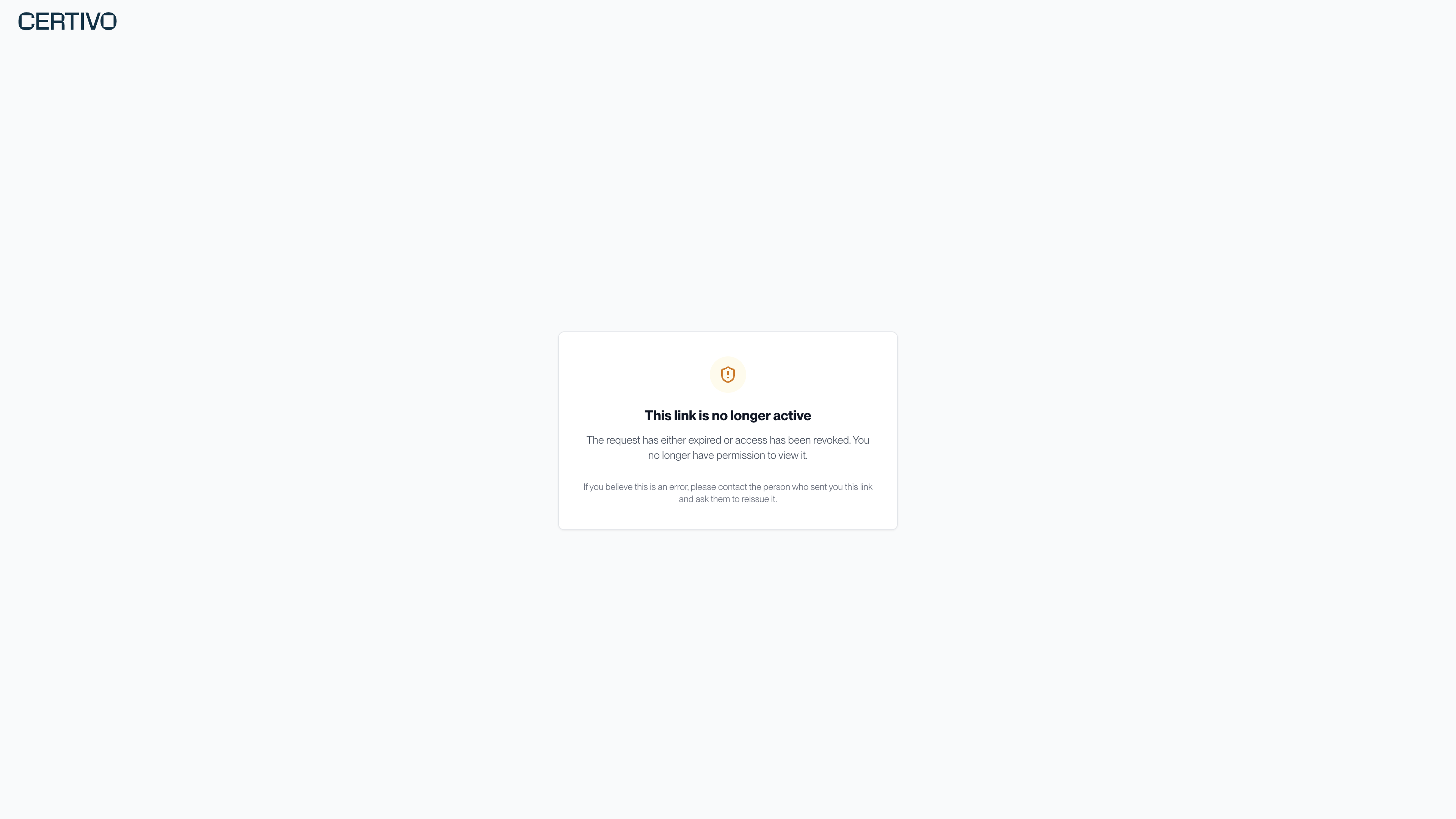
"This link is no longer active"
 (opens a larger view)
You see this page when:
- You signed in with an address the portal does not recognize for your company.
- Your customer has paused or closed the request.
- Your access has been removed.
What to try:
- Check which address the request email was sent to. If you signed in with a different one, open the link in a private browser window and sign in with the right address.
- Ask a colleague who can open the portal to add you as a contact.
- Ask your contact at the customer to send the request again.
Give a colleague access
Anyone who can open the portal can add other people from your company.
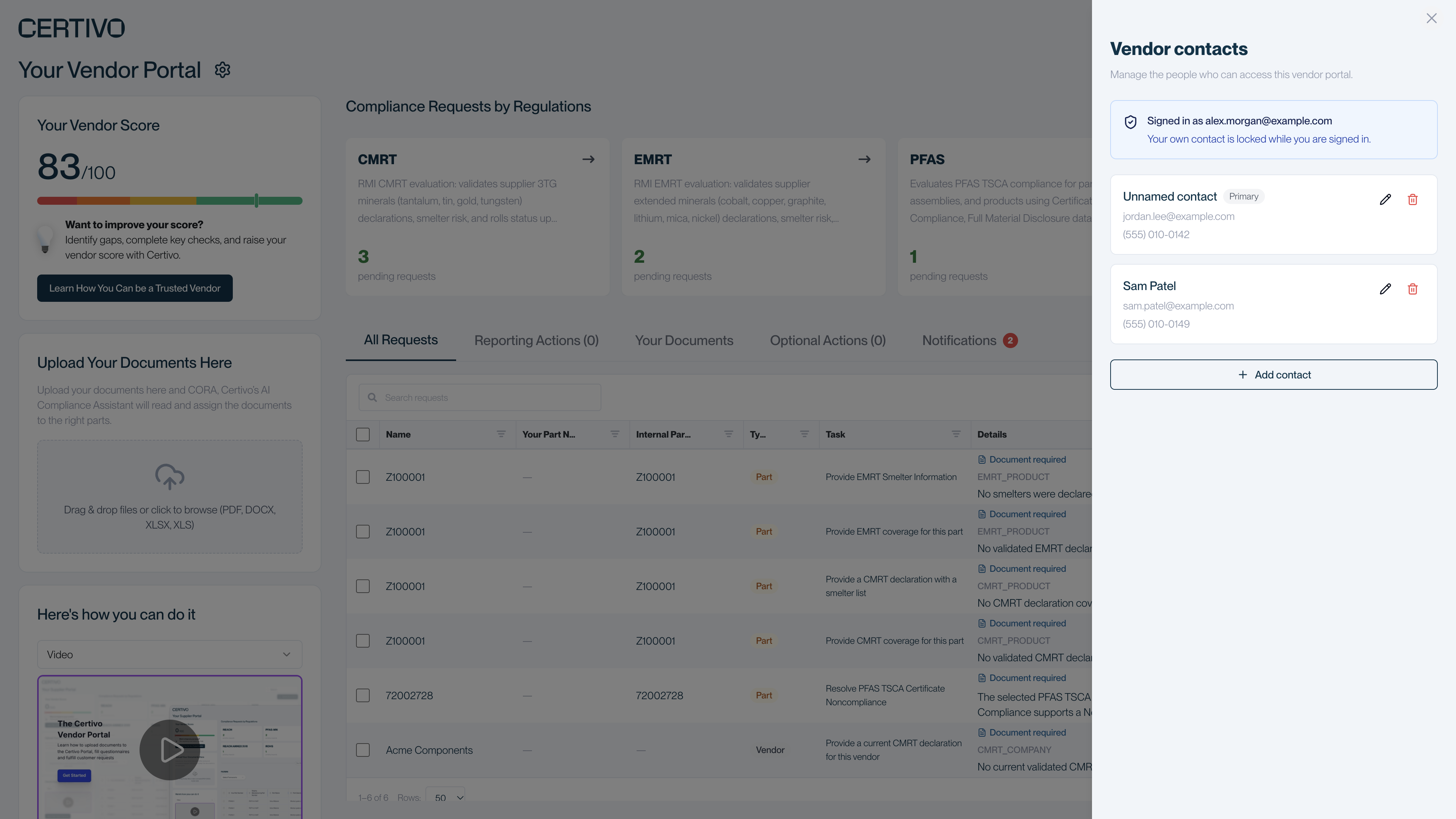
- On the main page, select the gear icon next to "Your Vendor Portal".
- In Vendor contacts, select Add contact.
- Enter the person's name and email address, then select Add contact.
- Forward them the request email. Adding a contact does not send them a message, so they need the link from you.
 (opens a larger view)
In the same panel you can edit or delete other contacts. You cannot change or delete your own entry while you are signed in with it. A company can have up to 100 additional contacts.
Sign out
Select Account at the bottom of the left-hand column on the main page, then sign out. Scroll down if you do not see it.
If you supply more than one Certivo customer
Each request link belongs to one customer. You can use the same email address for all of them, and each link shows only that customer's requests.